CIS FAQs

-  cis faqs - to be updated

Frequently Asked Questions - Lyson Continuous Ink Systems Page 1 >> Page 2 Please find below a list of Frequently asked questions. If you have a question please email us at and, if useful to others, we will print it on this page. Questions (click to jump) Which Printers are Supported? Can I Change the Ink Type Using the Same CIS System? What's the Mechanics of the System? Should I Flush the Printer Prior to Installation? What's the CIS Installation Procedure in Simple Terms? How do I Replace a CIS Cartridge? What Height Should the Ink Reservoirs Be? I Have Air in my Lines - What Sould I do? When Should I Refill the Reservoir Bottles? I Have Lost My CIS Installation Instructions - Can I have another set? An Ink Reservoir has Run Dry - What Sould I do? Why is my Printer not Recognising a CIS Cartridge What's the Refilling Procedure?

Q: What Printers are supported by this System? A: For all the Epson and Canon printers that are supported please our continuous ink system page. Any news of printers that we will support in the future can be found by clicking here

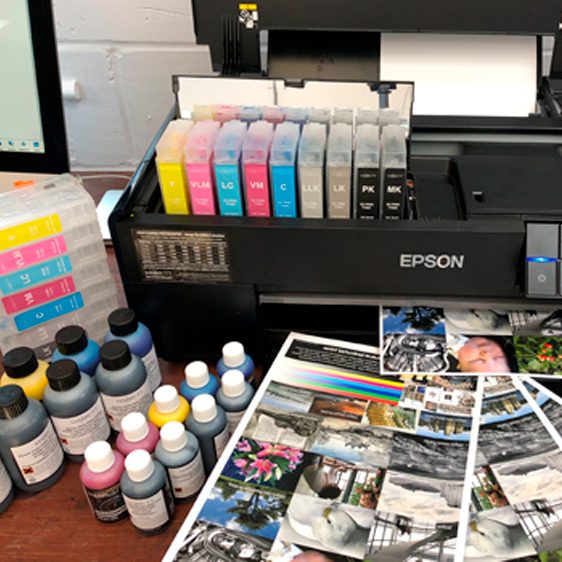
Q: How does it work? A: In very simple terms, robust ribbon tubing is fixed to the cartridges and travels back and forth in line with the print head. Continuous ink is drawn out of the cartridges via the 125ml bottles or containers which sit outside the pinter. The system does not touch the inside of the printer and does not affect the usual printer operation in any way.

Q: Lyson CIS Installation - simple terms A: All of our systems come with full, illustrated, step by step instructions. Here is a very basic breakdown of the installation process: • Outside of the printer, using the funnels supplied, fill each container with the correct ink- (5 minutes approx) • Take each cartridge and using the syringe and pull the ink through for each channel (3 minutes approx) • Remove the Cartridge Cover (3 minutes approx) • Place cartridges into the print head - These are held in by friction pad(s) (2 minutes approx) • Attach the CIS arm support (2 minutes approx) • Now enjoy printing at a fraction of the cost! ( Please read the [provided instructions carefully and take your time! Any queries please do not hesitate to contact us)

Q:Does it matter at what height the ink bottles/containers are? A: Yes, you must always keep the ink bottles at the same height as the printer! If your bottles/containers are at a higher level than the printer, you may experience ink pooling on the paper. If your ink bottles/containers are below the height of the printer, the ink may be pulled out of the nozzles due to a lack of pressure, which, may affect your printers' nozzle check. So, once again, You must always keep the ink bottles/containers at the same height as the printer!

Q: When should I refill the reservoir bottles/containers? A: Never let your bottles/containers run out! Always make sure your bottles/containers are at least a third full and we always recommend you keep a spare set of bottles. This is one of the main reasons why photographers experience poor output. So refill your bottles when they are no less than a third full.

Q: An Ink Reservoir has Run Dry A: If one of your bottles/containers is empty, you will first need to fill your container with the correct ink and then reprime your cartridge. For a step by step guide for how to re-prime your cartridge, see here. Page 1 >> Page 2

http://www.marrutt.com/faqs-cis2.php

Frequently Asked Questions - Lyson Continuous Ink Systems Page 1 >> Page 2 Please find below a list of Frequently asked questions. If you have a question please email us at and, if useful to others, we will print it on this page. Questions (click to jump) Which Printers are Supported? Can I Change the Ink Type Using the Same CIS System? What's the Mechanics of the System? Should I Flush the Printer Prior to Installation? What's the CIS Installation Procedure in Simple Terms? How do I Replace a CIS Cartridge? What Height Should the Ink Reservoirs Be? I Have Air in my Lines - What Sould I do? When Should I Refill the Reservoir Bottles? I Have Lost My CIS Installation Instructions - Can I have another set? An Ink Reservoir has Run Dry - What Sould I do? Why is my Printer not Recognising a CIS Cartridge What's the Refilling Procedure?

Q: How do I refill my bottles? A: Please ensure you do this when the bottles are no less than one-third full. To refill your bottles, simply: For Version 1 Lyson Continuous Ink Systems (with bottles on the right hand side of your printer) • clamp off the tubes • unscrew the container (ensuring the tubes are not twisted) • top up the ink using the correct colour and funnel • screw the top back on • unclamp the tubes and start printing! For Version 2 Lyson Continuous Ink Systems (with containers on the right hand side of your printer) • simply top up the container using the funnel supplied with correct ink colour.

Q: Can I change the ink type and still use my existing CIS system? A: We do not recommend this, as it is extremely difficult to get rid of the remainder of the previous ink. In this instance we recommend you purchase a conversion kit from us (a cheaper price than the original starter system). This includes new empty cartridges and tubes. Please contact us for further details.

Q: Do I need to flush the printer before installing the CIS? A: In most cases, no. As long as your printer is healthy (has a complete/perfect nozzle check) you can install it straight away. However, we do recommend that if your printer is over 2 years old you should consider using the cleaning cartridges. This flushing sequence is metaphoric to having your car serviced which should prolong the life of your printer. We do, however, recommend you use the cleaning cartridges when you are using the CIS in conjunction with Lyson PhotoChrome inks (these are pigment-based). These have a different pH from other inks so its important you flush your printer both before you change, and if you decide to revert back to normal inks. As there is very little ink retained in consumer printers, usually a couple of head cleans and nozzle check will be enough to pull the old ink from the nozzles. However, if you want to make completely sure the previous ink is gone, run a 1 or 2 pages of colour bars (black, magenta, cyan, and yellow). Once you've installed your CIS, you need to leave it overnight in order to for the ink to settle. You should then obtain a complete nozzle check the following day.

Q: I have just received a replacement CIS cartridge - how do i install this? A: The main point here is to ensure you change over the chip! ........Here is how to replace a cartridge: First of all, clamp all tubes. • First, take out the cartridge that is causing problems (to do this you will need to move the carriage to the cartridge change position, if you do not know how to do this, the procedure is explained in your original CIS instructions manual) and remove the tubing from the cartridge. • Take off the chip from the old cartridge. • Discard the old cartridge. • Place the chip onto the new cartridge. • Squeeze the tube onto the top nozzle of the new cartridge. • Release the clamp on the tubes. • Take a CIS syringe. (If you have not got a syringe, you can purchase this here) • Insert the CIS syringe into the nozzle of the cartridge that is causing problems. • Pull out the syringe until approximately 5ml of ink is present inside the syringe (not just foam or air). • Take the syringe out of the nozzle • Clamp all tubes. • Clean any ink around the nozzle using tissue paper then place cartridge back in the printer. • Release all clamps. • You can then syringe the ink back into the correct ink container. • Perform a nozzle check. • Please note: You may need to leave the printer for 1 - 2 hours to allow the ink to settle before you obtain a perfect nozzle check. • If the nozzle check is not complete after no more than 2 head cleans please contact us.

Q: I have air in my Lines. What should i do? A: If you have a perfect/complete nozzle check just keep printing. The air will then disappear as it enters the cartridge. However, if you have not got a complete nozzle check, carry out up to 3 nozzle checks and head cleans. If your nozzle check is still not perfect, leave the printer for 2 hours for the ink to settle. If your nozzle check is still not perfect after 2 hours, you will need to reprime your cartridge (the cartridge with the air in the line). For a step by step guide of how to do this, see here. If you are still experiencing problems after this please contact us.

Q: I Have Lost My CIS Installation Instructions - Can I have another set? A: Yes you can. Simply click on your printer to view in Adobe Acrobat (please allow a few seconds to load): Epson R2880 - 8 Channel CIS Epson R2880 - 9 Channel CIS Epson R2400 (If you purchased during or after December 2007, CLICK HERE) CLICK HERE for R2400 CIS operating instructions. See this document for instructions on how to refill the reservoir, tips for day to day use, Photo / Matte black changeovers and general troubleshooting. Epson R1900 Epson R1800 (If you purchased during or after December 2007, CLICK HERE) If you require changeover instructions for the version 2 Lyson Photo Black for the Epson R1800/R800 please click here. Please contact us if you have problems opening this document. Epson R800 (If you purchased during or after December 2007, CLICK HERE) Epson 1160 Epson 1400 Epson 2100 (If you purchased during or after December 2007, CLICK HERE) For the first style systems with the 125ml bottles on the right hand side, CLICK HERE Epson 1270/1290/S (If you purchased during or after December 2007, CLICK HERE) For the first style systems with the 125ml bottles on the right hand side, CLICK HERE Epson 7800/9800 Initial Fill instructions for the Epson 4800 For the Refillable instructions for the Epson 4000/7600/9600 please click here Epson 3800 Epson 4880, 7880 & 9880 If you have another printers' CIS please contact us and we will email it to you.

Q: Why won't my printer recognise my CIS cartridge? A: Although a rare problem, this scenario is down to the cartridge chip (the green board with electronic markings situated on the back of a cartridge). Sometimes this chip may have dust or dirt on the surface which will cause the printer problems in recognising the cartridge. - Take the offending cartridge out - Clean the chip using a cotton bud. - It is also necessary to ensure the metal contacts/prongs where the chip rests are in place and uniform. If this is not the case there is a printer fault. - Place the cartridge back inside the printer head. Once the cartridge is placed back inside the print head, turn both the printer and your computer off for 10 minutes to reset the printer driver. It is also a good idea to take out the power lead. When you turn the printer and computer back on the printer should recongnise the cartridge. Page 1 >> Page 2

Last modified on Monday, 21 February 2011 21:33
buy2get1free

BUY 2 GET 1 FREE ON ALL 13 INCH ROLLS!

CLICK HERE

NEWSLETTER SIGNUP

Your Name (*)

Please let us know your name.
Your Email (*)

Please let us know your email address.

SAME DAY SHIPPING

Click Here
for information & charges

NEW BULK INKS FOR EPSON R3000 & R2000

epson-r3000
Epson R3000 Bulk Inks
Epson R2000 Bulk Inks