|
 |
|
| |
|
TOPICS (click to jump) 
Printer Head Cleaning
Printer Banding / Incomplete Nozzle Check
Roller Marks on Prints
C.I.S Support
Inaccurate Colour / Installing Profiles
Further Help |
  |
|
 |
| |
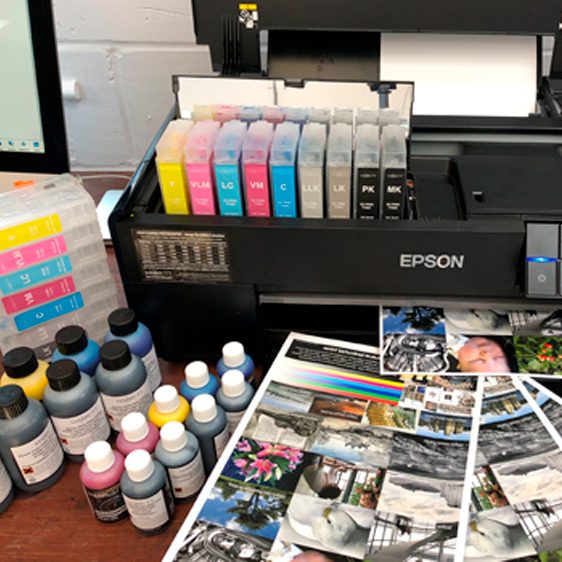
Before each printing session, carry out a nozzle check to ensure that all ink channels are firing. If they are not, make sure that you have not run out of ink, and then perform up to a maximum of four nozzle checks and cleans to restore a good nozzle print out (when you replace a cartridge, you may need to carry out a couple of cleaning cycles to get rid of air which will inevitably enter the system during the changeover process) . Also, make sure that the blue lever at the right hand side of the printer is set to zero (on most Epson desktop printers) - If this is unsuccessful, read on:
Problem prevention is always better than problem solving!
Turn you printer on for a few minutes once every few days - especially when you are not using your printer for long periods. When you turn a printer on, it goes through a mini head-clean which can prevent the build up of dried ink on the underside of your ink head. - If you go on holiday, why not leave your printer switched 'on' and connect your print to the mains through an inexpensive central heating timer switch, set to turn on for a few minutes every other day - when you return, your print head will be in perfect order, ready to print.
For dirty rollers we recommend Platen Cleaner Spray. This will remove any build-up of dried ink or paper fibres. We advise you to use this spray applied to a sheet of paper to create a cleaning sheet, which will maintain your inkjet roller friction, and maintain good paper feed characteristics. |
| |
Printer Banding / Incomplete Nozzle Check |
| |
There are many causes of printer banding and these are often simple mistakes which can be easily corrected. Before you attempt any printer cleaning methods we suggest you go through this fault finding checklist:
• The lever on the right hand of the printer is set to the correct position - '0'
• You have a perfect nozzle check and the text underneath is clear and crisp. (performed in printer drivers utility)
• You have a perfect head alignment. (performed in printer drivers utility)
• If you have a continuous ink system please ensure all bottles are at 50% full
• The print resolution is correct, usually 1440 dpi. (set in printer driver properties)
• High speed is un ticked unless your profile settings say otherwise. (set in printer driver properties)
• You have the selected the correct media setting. (set in printer driver properties)
- If this is unsuccessful, read on:
The aim of this printer head cleaning technique is to attempt to force ink through the nozzles, thus clearing any dried ink.
• Produce a solid block of the colour you are experiencing problems with in Adobe Photoshop. This is done using the paint bucket tool.
• Print it up to 12 times A3 size on 1440 dpi • Keep printing until you get a solid colour • If you are experiencing a problem with a certain channel using a bulk system please ensure the bottle is filled to the top, and your breather tube is not block or pinched off in any way. Check also that your ink feed line in not clamped off by mistake.
If you have problem with more than one channel you may like to run a purge file at 1440dpi in order to gain a complete nozzle check. Right click here and select "save target as"
save this in any folder or on your desktop - you can then open this up in Photoshop for printing. Print this up to 6 times or until your nozzle check come good.
If this technique fails to produce a solid colour, please refer to the next technique below:
This printer cleaning technique requires Isopropanol Cleaning Solvent and a piece of cloth – 10cm long by 1.5cm wide by 2mm thick. This technique is excellent for softening dried ink under the print head that can cause blockages. See below for the step by step guide:
• Turn the printer off.
• Switch the gray leaver at the back of the printer to the CD position (there is a picture of a CD) this raises the ink head.
• Facing the printer, so the ink head is on the right hand side, you will see a small white lever that comes out of the bottom of the printer on the left hand side of the print head. This stops the ink head from moving to the left. Push this lever down – you can now manually move the print head.
• Soak the cloth in Isopropanol Cleaning Solvent.
• Place the soaked cloth on the left hand side of the printer so it lies on the bottom where there is a sponge-like material. Make sure the cloth is a flat as possible.
• Manually move the print head over the cloth
• Switch the gray lever at the back to the paper position so the ink head lowers down onto the cloth.
• Preferably, leave the printer in this state overnight.
• In the morning, raise the head (put the gray lever in the CD position) and move it to the right of the printer. Then return the gray lever to the paper position
• Remove the cloth - it should be completely saturated with ink and dried ink deposits.
• Turn the printer on and perform a nozzle check.
• If the nozzle check is not complete after no more than 2 head cleans please contact us. |
| |
|
| |
| A very small percentage of photographers use the Epson 2100 to print on CDs. However, this does cause printing problems when printing with some media causing roller marks on the print. As the vast majority of photographers do not use their Epson 2100 for this purpose, it is advisable to raise the wheels used for CD printing. This will enable your Epson 2100 to print on a wider range of media with no roller marks. For an illustrated tutorial on how to do this please click here |
| |
C.I.S Support - Ink Reservoir Recovery: |
| |
If you have a Continuous Ink System and you are experiencing a lack of ink in one (or more) of your channels you may have lost your ink reservoir:
• To recover this reservoir, you must take out the cartridge that is causing problems (to do this you will need to move the carriage to the cartridge change position, if you do not know how to do this, the procedure is explained in your original CIS instructions manual) and place it on a piece of tissue paper.
• Take a CIS syringe from your original CIS kit (If you have not got a syringe, you can purchase one from here)
• Remove the bung from the top of the CIS cartridge that is causing problems and insert the Syringe inside the hole of this cartridge.
• Slowly pull up on the syringe until approximately 5ml of ink is present inside the syringe (not just foam or air).
• Take the syringe out of the hole and insert the rubber bung back into the hole on the top of the cartridge.
• Place cartridge back in the printer.
• You can then syringe the ink back into the correct ink container so no ink is wasted.
• Rinse out the syringe with water over a sink and keep safe in case you need it again.
• Perform a nozzle check.
• Please note: You may need to leave the printer for 1 - 2 hours to allow the ink to settle before you obtain a perfect nozzle check.
• If the nozzle check is not complete after no more than 2 head cleans please contact us.
First of all, clamp all tubes.
• To recover this reservoir, you must take out the cartridge that is causing problems (to do this you will need to move the carriage to the cartridge change position, if you do not know how to do this, the procedure is explained in your original CIS instructions manual) and place it on a piece of tissue paper.
• Release the clamp on the tubes.
• Take a CIS syringe and fit a tapered adapter to the end. (If you have not got a syringe or tapered adapter, you can purchase these here)
• Insert the CIS syringe complete with the tapered adapter, into the nozzle of the cartridge that is causing problems.
• Pull out the syringe until approximately 5ml of ink is present inside the syringe (not just foam or air).
• Take the syringe out of the nozzle
• Clamp all tubes.
• Clean any ink around the nozzle using tissue paper then place cartridge back in the printer.
• Release all clamps.
• You can then syringe the ink back into the correct ink container.
• Perform a nozzle check. • Please note: You may need to leave the printer for 1 - 2 hours to allow the ink to settle before you obtain a perfect nozzle check. • If the nozzle check is not complete after no more than 2 head cleans please contact us.
For further Epson 2100 CIS support, please refer to this page
Download the Installation Instructions for the Lyson Continuous Ink System for the Epson 2100 by clicking here: Epson 2100 |
| |
Inaccurate Colour/Installing Profiles: |
| |
First of all, please ensure you have a perfect nozzle check (this is carried out in the utilities section of your Epson printer driver). If you do not have a perfect nozzle check, please refer to this section of this page. Once you have confirmed you have a perfect nozzle check, ensure you are selecting the correct profile and have the correct printer settings in Adobe Photoshop for that profile (correct media type, resolution, colour management settings...) - if you are unsure of these please contact us.
Epson 2100 inkjet printers do vary quite noticeably one printer to another, so it is advisable to install a free ICC profile for your printer/paper/ink combination. You can download free ICC generic profiles and the installation instructions from here.
For professional photographers and critical enthusiasts, it may be best to commission one custom ICC printer profile for your favourite inkjet media to guarantee best possible colour accuracy and image quality. We have two specialists who look after professional photographers, and one profiling specialist who assists enthusiasts (non-professionals). Please Click here for their links |
| |
|
| |
| If you are still experiencing difficulties with your Epson 2100 printer, please contact us and we will do our best to help you. |
| |
|
|
|
 |
 |
|