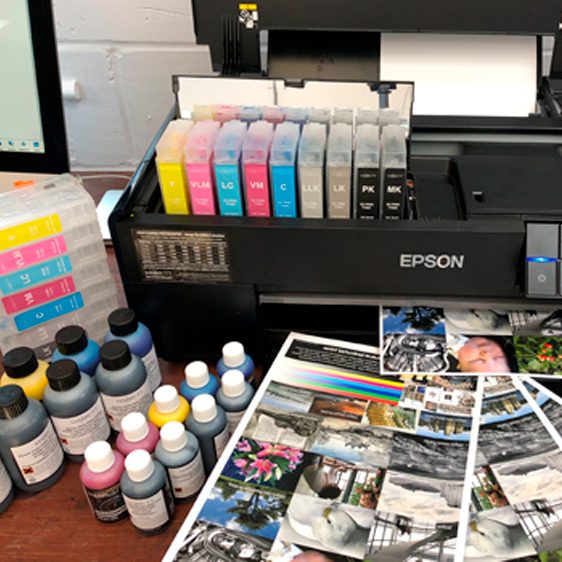
Epson R2880 Printer Support Page
Please read this page to ensure your getting the best use out of your Epson R2880 printer in terms both of results and reliability.
TOPICS (click to jump)
Lyson ICC Profiles
Printer Head Cleaning
Printer Banding / Incomplete Nozzle Check
CIS Installation
CIS Inkjet Head Recovery
CIS Ink level reset / Cartridge recognition - 8 Channel CIS
CIS Ink level reset / Cartridge recognition - 9 Channel CIS
Inaccurate Colour
Further Help
Lyson ICC Profiles
For PC users: To download these profiles you will require Winzip. Go to http://www.winzip.com/downwz.htm to download this software.
For Mac users: For MAC OSX 10.3 or later, there is a bulit in utility that opens these zip files. For earlier Mac operating systems, you will require StuffIt Expander! CLICK HERE to download this software.
For profile help and support, CLICK HERE
Click your paper type to download your profile...
Printer Head Cleaning
Before each printing session, carry out a nozzle check to ensure that all ink channels are firing. If they are not, make sure that you have not run out of ink, and then perform up to a maximum of four nozzle checks and cleans to restore a good nozzle print out.
THE BEST TIP OF ALL: Problem prevention is always better than problem solving! Turn you printer on for a few minutes once every few days - especially when you are not using your printer for long periods. When you turn a printer on, it goes through a mini head-clean which can prevent the build up of dried ink on the underside of your ink head. - If you go on holiday, why not leave your printer switched 'on' and connect your print to the mains through an inexpensive central heating timer switch, set to turn on for a few minutes every other day - when you return, your print head will be in perfect order, ready to print.
For dirty rollers or poor paper feed action, we recommend Platen Cleaner Spray. This will remove any build-up of dried ink or paper fibres. We advise you to use this spray applied to a sheet of paper to create a cleaning sheet, which will maintain your inkjet roller friction, and maintain good paper feed characteristics.
Printer Banding / Incomplete Nozzle Check
There are many causes of printer banding and these are often simple mistakes which can be easily corrected. Before you attempt any printer cleaning methods we suggest you go through this fault finding checklist:
- If this is unsuccessful, read on:
Problem with a single channel (e.g. black): The aim of this printer head cleaning technique is to attempt to force ink through the nozzles, thus clearing any dried ink.
If you have problem with more than one channel you may like to run a purge file at the best print quality (the slowest print) in order to gain a complete nozzle check. Right click here and select "save target as" save this in any folder or on your desktop - you can then open this up in Photoshop for printing. Print this up to 6 times or until your nozzle check come good.
CIS Installation
To view the illustrated step-by-step installation instructions for the R2880 CIS, click the links below...
You can also view a video demonstrating this process from the links below:
8 Channel CIS
9 Channel CIS
CIS Inkjet Head Recovery
If you have a Continuous Ink System and you are experiencing a lack of ink in one (or more) of your channels you may have lost your ink flow.
We demonstrate further head cleaning methods for printers such as the Epson R2880 in our Bad Nozzle Check Basics training video
CIS Ink level reset / Cartridge recognition - 8 Channel CIS
Initially Installing the CIS Cartridges: These Epson printer CIS systems are fitted with auto reset chips (ARC) which are easily reset without taking out the cartridges. When first installing these systems, make sure that each cartridge is securely pressed in to position, and an audible ‘click’ is heard.
How to reset the Ink Levels: When a light above each cartridge comes on, simply push the ink change button, allow the cartridge carrier to travel to the ink change position, then gently squeeze the reset switch(s) between your finger and thumb - do not press with a single finger, in case you break off the reset switch stalk.
Once you have squeezed the reset switch, press the ink change button again, and the ink light should extinguish, once the green light stops flashing. If your lights continue to stay on despite a reset procedure, this indicates that either the chip needs cleaning (rub with a dry paper towel) or that the cartridge chip needs replacing. See step 13 of the R2880 CIS Installation instructions for illustrated instructions.
CIS Ink level reset / Cartridge recognition - 9 Channel CIS
In addition to the above technical support notes, if you are using a Lyson CIS system for the 2880 nine channel (individual cartridges), always make sure that each cartridge is securely clicked in to it’s own housing, and that the correct colour cartridge is inserted into the colour indicated on the cartridge housing.
Please Note: If a light comes on, this indicates that your should reset the cartridge chip concerned by moving the cartridges to the ink change position (press the middle ink change button), and take out that particular cartridge by a few millimetres, then securely click it back into position.
Pressing the ink change button should then extinguish the light when the green light stops flashing. If this does not happen, clean the chip with a dry paper towel and re-insert the cartridge.
This technique is described step-by-step below:
If this does not solve the problem, contact us for a new CIS cartridge, as the most likely fault is that the cartridge chip memory has failed.
Inaccurate Colour
First of all, please ensure you have a perfect nozzle check (this is carried out in the utilities section of your Epson printer driver). If you do not have a perfect nozzle check, please refer to the printer head cleaning section of this page. Once you have confirmed you have a perfect nozzle check, ensure you are selecting the correct profile and have the correct printer settings in Adobe Photoshop for that profile. These are:
IN ADOBE PHOTOSHOP PRINT WITH PREVIEW:
Select correct profile
Intent: Perceptual
Use Black point compensation: unchecked
IN EPSON PRINT DRIVER:
Media type:
Gloss, Satin and Semi Gloss Papers = Epson Premium semigloss (PC Users), Premium Luster Photo Paper (Mac Users)
*Fine Art Papers = Watercolor Paper Radiant White
Matt Papers = Archival Matt Paper
Print Resolution:
PC = Best Photo (level 4)
Mac = SuperFine 1440dpi
High Speed: On
Color Management
Select "Color Controls"
Gloss, Satin and Semi Gloss Papers = Color Controls selected. Mode: “Adobe RGB”, Gamma: “2.2”
*Fine Art and Matt Papers = Off (No color adjustment)
* For Fine Art Papers: Be sure to select “Manual-Roll” as the Paper Source. Use the rear media feeds on your printer provided by Epson for more reliable take up of thicker papers. Consult the “Help” documentation in the printer driver for details.
NOTE. For generic gloss profiles, any colour cast can be dialled out by adjusting the cyan, magenta, and yellow sliders. Ensure only small adjustments are made as they can have a dramatic effect on the overall tone of the print. Any amount you subtract from a colour should be added to the other two so that the net effect is zero. For example a warm cast could be compensated for by reducing the magenta by -2, and adding +1 to both the yellow and cyan.
Due to the settings used for Fine Art and Matt papers this technique cannot be used for these media types.
Epson R2880 inkjet printers do vary quite noticeably one printer to another, so it is advisable to install a free ICC profile for your printer/paper/ink combination. You can download free ICC generic profiles and the installation instructions from the Profile Section at the top of this page.
For professional photographers and critical enthusiasts, it may be best to commission one custom ICC printer profile for your favourite inkjet media to guarantee best possible colour accuracy and image quality. We have two specialists who look after professional photographers, and one profiling specialist who assists enthusiasts (non-professionals). Please contact us for their links
Further Help
If you are still experiencing difficulties with your Epson R2880 printer, please contact us and we will do our best to help you.