|
 |
| |
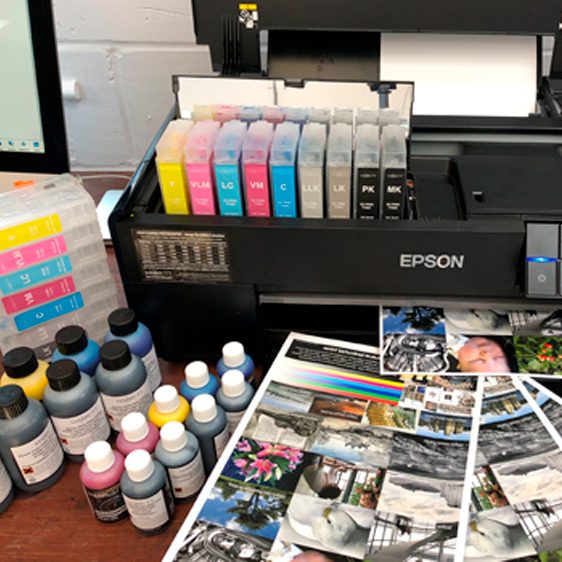
First of all, please ensure you have a perfect nozzle check (this is carried out in the utilities section of your Epson printer driver). If you do not have a perfect nozzle check, please refer to this section.
Once you have confirmed you have a perfect nozzle check, ensure you are selecting the correct profile and have the correct printer settings in Adobe Photoshop for that profile (correct media type, resolution, colour management settings...) - if you are unsure of these please contact us.
Desktop inkjet printers do vary quite noticeably one printer to another, so it is advisable to install a free ICC profile for your printer/paper/ink combination. You can download free ICC generic profiles and the installation instructions from here.
For professional photographers and critical enthusiasts, it may be best to commission one custom ICC printer profile for your favourite inkjet media to guarantee best possible colour accuracy and image quality. We have two specialists who look after professional photographers, and one profiling specialist who assists enthusiasts (non-professionals). Please Click here for their links. |
| |
| ICC Profiles Explained - Trouble Installing / Selecting Profiles: |
| |
A Profile is a file that describes how an input or output device handles colour. As all printers come with colour biases, colour errors etc. it is necesaary to install a profile to achieve accurate colour from your printer.
Profiles needs to be installed into your hard drive and then selected in Photoshop . The profile is installed by dragging your profile(s) into the correct folder, and can be confusing as it depends on your operating system, the paths to get to this folder are found below:
Windows XP = my computer - c: - windows system32 spool drivers - then drag and drop into the color folder
Windows 2000 = my computer - c: - windows system32 spool drivers - then drag and drop into the color folder
Windows 98 = my computer - c: - windows system - then drag and drop into the color folder
Mac OSX = MacHD - Users - imac(home) - library - colour sync - then drag and drop into the profiles folder
Mac OS9 = MacHD - system - then drag and drop into the colorsync profiles folder
You need to ensure that after you've installed your profile you re-start photoshop (if already opened).
You also need to ensure you select the profile in Photoshop . For Photoshop versions 7, CS and Elements 2 the profile is selected in: File, Print with Preview, (making sure you have 'Show More Options ticked' and 'Color Management' selected) print space profile.
For Photoshop CS 2, after selecting 'Color Management', in Options select "Let Photoshop Determine Colors" in the 'Color Handling' box, then you will be able to select your profile in the box below.
Please Note: If you need to select "same as source" in Adobe Photoshop CS2 this has been replaced by "No Colour Management" (selected in Print with Preview, Colour Management, Option, Colour Handling).
For earlier versions of Photoshop the profile is selected towards the bottom of Print dialog box where it says space.
We also can provide a sticker which can be attached to your printer to remind you of the correct Photoshop settings. Please or call 01825 764057 and we will send you a free ICC profile and sticker with the settings free of charge |
| |
| Further Help: |
| |
| If you are still experiencing problems, please call us on 01825 764 057 so we can fault-find, and hopefully resolve your problem. |
| |
|